welcome

Earning world

Sunday, December 26, 2010

Open Windows Explorer with Single Pane


When you use [Windows] +[E] to open a Windows Explorer window, it opens in the two-pane layout.To have it open within a single pane by default, do the following :
In the Registry Editor, navigate to


HKEY_CLASSES_ROOT\Folder\shell\explore\ddexec


Double click on the (Default) and change the string to
[ ViewFolder (“%1” , %I, %S) ] (including the brackets )


To revert to the double pane window, set (Default) to
[ ExploreFolder(“%1” , %I, %S) ]

Google Checkout


Google Checkout is an Online Payment system.When shopping online,going through the routine of filling up a registration form and getting a demand draft or check issued is painful.An online payment system eliminates the need for that routine.When registering for such a service you provide information regarding yourself and your bank account and credit card to the service provider.The next time you shop in you need to log in to your online payment account and you are taken to the payment providers siteto confirm the payment.The merchant and the service provider do the rest behind the scenes. The product also gets on its way to you faster.
Online payment systems usually charge the merchant tranaction include a fixed charge and a percentage of the transaction value.In return by including an online payment system on their site,merchants can hope to attract people who prefer the convenience of such payment process systems.The present king of hill by far in this market is PayPal,now an ebay subsidiary.Google’s foray in this market is Checkout.
GCK(Google Checkout) only caters to individual to business transactions.This service is not yet available in India.
BUYERS
Users planning to use GCK for their purchases need to provide a credit card number,besides a residential address,at the time of sign up.There are no fees associated for using GCK for purchasing online.GCK keeps track of all the transactions conducted by the user so a purchase history is easily available.GCK does not reveal card detailsto merchantsand if the user so desires even the mail id is with held.Also is allows users to rate the merchantsthey purchased from.This rating is maintained independent of the merchants site.and so allows other users to form unbiased opinions.GCK offers the user protection from credit card theft in case unauthorized purchases are made on the credit card.
MERCHANTS
Merchants who want to offer the service are provided with the javascript code that needs to be inserted into their site.The link provided in the code takes the visitor to the GCK page where the details of the payments are to be made out.GCK charges $.20 plus 2 percent of the transaction value as fees.By offering discounts to the members of its AdWords Programme,Google offers some incentives to sign up for GCK.An investment in ADWords allows free transactions upto 10 times that in GCK.So a merchant who has invested $ 10 in AdWordsis not levied any transaction fees for transactions upto $100.Other ways in which GCK helps merchants is by putting up an icon in their ads.People who can see the GCK iconin the site’s ads can be a assured that GCK is providing the payment service.This helps the GCK supported site’s ads to stand aprt from other ads.Besides that GCK helps the merchants fight buyer fraud, asituation where buyers claim that the product they received is not as described.
LIMITATIONS
GCK is presently available only in the US.Unlike PayPal it is not possible to transfer money between individuals.GCK only allows transfer between merchants who have registered at GCK and users.

GOOGLE HELLO


After Google Talk ,Hello is another instant messaging (IM)service by google with a different take.It is an application for sharing digital images with friends –no websites and no email required to share your photos with Hello.The only requirement is that both the sender and the receiver need to have the Hello program installed.Get it at www.hello.com.


You can share photos with your friend while chatting –no resizing the high quality photos or wasting time waiting images to upload.Blogger users can also upload photos and add captions directly through Hello.It has also Bloggerbot which is in your buddylist and directly uploads photos to your blogger blog.At present Hello only supports JPEG files.

You can images using IM and simultaneously add comments and chat with your friend.The receiver will receive images in a few seconds depending on the speed and then the images can be saved or printed.
Hello’s only drawback is that you cant share pictures with more than one user at the same time.But it can be used with or without picassa.Your photos and chat are secure as the application connects you by peer to peer networking even when your firewall is on.All chats and photos transferred are protected with 128 bitadvanced encryption Standard (AES) encryption
Smiley and Fun shortcuts
Np= No Problem
b= Bye
c=Cool
h=hi
k=Ok
brb =Be Right Back
ty=Thanks
l=LOL
n=No
y=Yes
bfn=Bye foe now
md= most definitely
When images are sent Hello optimizes them for quick transmission.Received images are stored in the My Pictures folder by default,but you can change this if you want.You can drag and drop images from any folder with windows explore and Picassa albums.While you chat you can also see which photo your friend is currently viewing,thanks to a small pop up window above the filmstrip on the right.
BloggerBot is a kind of Gateway by which images with captions can be post directly on your Blogger Blog.Clock BloggerBot in your friends list and you will reach the Blogger Home page.So you can log in your Blogger blog and manage your photos directly.


So friends try out Google Hello.

Google Groups


Google Groups is a free service for communicating ,discussing and sharing ideas through email or at the website.You can create ,manage or browse groups to seek or give opinions,advice,resources or information.Like several other group sites on the net it has all the basic features –search for topics on your interest or browse for information posted on the groups.
On Dec 2 ,2004 Google launched Groups Beta with a new look and improvements over the earlier groups.The new Beta enables mailing lists and public discussions .You can bookmark topics that interest you and receive replies on starred topics on your group page.To log in and sign for groups all you need is a Google account.Each group has its own email address so that members can get updates and stay in touch with the group.

Create and Manage your Group
1.Set up a group by filling in relevant information and selecting the access level(public announcement only or restricted).
2.Add members either directly or by sending an invitation to join the group.

Group settings
Your group settings can be edited any time-
1.General
Group name ,Description,Web address and Group email
2.Appearance:
You can change the look of your group to one of the nine optionsand customize the fonts and colours of the sidebars.
3.Access Rights:
any changes you might want in members access rights can be made under this menu.
4.Navigation:
The navigation order and visibility of the group connections are customizable .If you have public access to your group,you can hide the member list by clicking on the Hide next to it on the page.The subsections can be renamed from here.
5.Categories :
Selection of a category for your group is made from this option.Select a category by topic or region.If your choice is not listed you can search from the search box.
Advanced :
Advanced options include selecting a primary language for the group and deleting the group.The group can also act as a remote archive for the mail lists hosted on other services.


Groups settings help customize the functioning of the group activities according to the options selected.Management tasks below Group settings on the menu bar help in the management of pending messages and members of the group.You can also edit your membership in the group,in which you can edit your e mail settings and your nickname in the group.
Search for a Group
If you are looking for a group on a particular topic,region,language,activity level or number of users ,you can use the group Directory.Google Groups includes the Usenet newsgroups each of which has subgroups .Such Groups and Subgroups are separated by a fullstop for instance comp.windows.vista.Here “comp” is the group, “windows” is the subgroup,and “vista” is the topic for which that particular group was created .

In conclusion


Groups are communities created by and for people with similar ideas and tastes and for sharing information and resources,Posting messages ,searching ,customizing group pages and browsing groups have improved under Google Groups Beta.

Google Moon


In 2005 on the 36th anniversary of the first human landing on the moon by Neil Armstrong and Edwin Aldrin Google announced an extension of their mapping service to Lunar space-July 20 ,2005 Google Inc. launched Google Moon(http://moon.google.com/) with imagery taken from NASA.
At http://moon.google.com/ one can see a map of Lunar surface .The zooming tools on the top left of the map allow you to zoom in and zoom out.
Currently ,Google Moon has mapped the six Apollo space-craft landings(Apollo 11,12,14,15,16 and 17)with their respective dates and people on the respective Apollo mission.All these missions have been mapped with the letters A,B,C,D,E,F on the Google moon map
By the 100th anniversary of the human landing on the moon Google intends to fully integrate Google local search capabilities with Google Moon allowing users to search Business Addresses, and numbers and hours of human space.(Of course they assume we will have colonised moon by then).
The Google Copernicus Hosting Environment and Experiment in Search Engineering (G.C.H.E.E.S.E) has a sense of humour .On the lunar surface as you zoom the map to its maximum the surface of the moon changes to Swiss Cheese…..!!!
The Google Moon site is worth seeing……!!!

Google Docs


Google Docs (GD) is part of Google’s strategy to replace offline office applications with their online counterparts.GD offers features like creating, storing, importing , exporting documents along with the ability to incorporate RSS feeds,the ability to track revisions,and the ability to publish a document to your blog.GD is the result of Google’s acquisition of Upstartle,a company that created Writely-a web based word processor.After the acquisition Writely was named “Google Docs”.
Using GD:

Logging in:
You need a Google or Gmail id to be able to use GD.If you are a Gmail user you can add the GD service from the “All My Services “link at the top left of the Gmail mailbox page.

Creating Documents:
To start a new document ,click on the New Document link.The script file will take a few minutes to load.The toolbar in the Edit tab contains all common formatting options like applying bolding ,italicization,underlining,changing of fonts ,numbering,paragraph alignment etc.
The Style dropdown list contains additional options in the form of few preconfigured paragraph styles ,line spacing and text positioning such as subscript and super script.The Ahange drop down can be used to manage bookmarks.Bookmaraks in conjunction with links can be used to quickly jump to selected points in a document.
To add a bookmark at a point ,position the cursor there and click on the manage bookmark link.You should add a meaningful name to book to avoid the confusion when configuring a link to it.The text can be spellchecked using the link at the bottom right.

Limitations:
A glitch here is the inability to continue entering ordinary text after entering a quote.To enter a quote u click on the quote button on the toolbar which will create a box outlined by dashes.Now after you have finished the quoted text you cannot add new text outside the box as the cursor will not budge outside it.To bypass this it is better to type out the entire document and then select and apply quotes to the relevant text.
The ability to set margins is also lacking in GD.

Inserting Additional Content:
The insert tab allows the inclusion of non textual content in the document.These can be images links ,tables ,bookmarks,separators ,comments , and special characters.Clicking on respective link opens a pop up that offers instruction on how to proceed.

Inserting Images:
The JPEG ,BMP,GIF and PNG files are supported but TIFF files are not.Image file size is limited to 2MB.

Inserting Links/Bookmarks
A link can be used to connect to a URL on the Net or a bookmark on the same document or to create a “mail to” address containing an email id.Additionally you can also link it to a document or spreadsheetyou are collaborator or viewer of.
Bookmarks can be created using the bookmarks link on the toolbar.Using Bookmarks and links a navigable table of contents can be created.

Inserting Tables:
You can choose the rows and columns of a table besides its colours ,borders and other features.
Inserting Special Characters:
For inserting special characters the special characters link is used .
Version Control:
Comparing versions is possible under the Revisions tab.Here you can choose to browse the different versions of the document by choosing the relevant version from the drop down box.You can also compare the two versions of the document under the “compare two Revisions” Link.

Additional tweaking:
The Edit HTML Tab allows you to modify the HTML code underlying every document.This could be used by people with the relevant knowledge to add effects not provided by the interface- like the ability to merge adjacent cells of a table ,or use a text size not on offer.

Collaboration:
To add viewers or other editors, use the collaborators tab.Here you can add collaborators by their Email addresses.A prompt requesting permission to send an invitational email comes up after the “Invite these people” button is pressed.The email body can be customized before it is sent.

Publishing
If you prefer to allow unrestricted viewing of your document use the Publish Tab.Under this Tab,the Publish document button puts the document online.Once the document is published any person can view it at the URL provided alongside.If any changes have been made the “Republish document” button will update the online version.Any time you feel the document isn’t perfect publishing can be stopped by clicking on the “Stop Publishing” Button.This will cause the document to be taken offline.
Documents can be published to your blog.Before that can be achieved you need to enter the Blog Settings under the “Set your Blog Site settings” link under the Publish Tab.

Saving ,Exporting ,Importing
The auto saving feature in GD does its job silently without seeking permission.A brief saving tooltip is what you see.There is no way to disable the auto saving feature, and sometimes the delay caused by the the auto save especially when dealing with large documents can be annoying.
The save button is on the top left of the editing area.On saving surprisingly there is no prompt asking for a file name.The first line of the document is automatically taken as the name .If you would like to rename the file you can use the file button on the top left.Saving the document by using the save button only saves an online copy,accessible from Docs and Spreadsheets staging area.To save the document offline it needs to be saved using the File menu at the top left.Supported File Formats include MS Word,OpenOffice Document and PDF.Under the Files menu you will also see the Find and Replace link.The Copy document link will create the copy of the document with a copy of Prefixed to the original file name .The word count function is also available from the file menu .If you would like to use GD to work on any document existing offline ,it can be uploaded to GD using the Upload linking the staging area .To Print the document use the Print link.
Configuring GD
Under Settings accessible from the staging area ,an additional GD options can be configured .The user’s name that will be visible to the collaborators of the documents can be changed under documents Tab.Under the RSS feeds tab,the behavior of the RSS feed for all documents can be changed .
If you would like to enable universal access to the RSS feed of the document it can be done by clicking on the “change settings” link under the “Private documents in Public feed” title .By allowing public accesss to the feeds search engine can find your feeds and allow people to subscribe to them.

So friends try out GD .Its an adequately capable online word processing package that packs in most of the features that laypeople need .

What can you search on Google Mars?


Google Mars has nine different features you can use.

Regions
Search for regions(if you know any !) or simply click on the Regions Tag,which shows the 33 different regions on Mars surface .The search can be limited to current region accessed by the user.When you click on the name of any region,an info cloud appears on the map.The cloud contains information about feature like the region Type,location ,size,year in which it was named and what it was named after.For Example ,the cloud for Noachis Terra shows the following information:
Feature:Noachis Terra
Type :Terra ,terrae
Location:44.7S,10E
Size:4800km/
Named in:1979
Named for:Biblical:Noah’s region

Spacecraft:
Like regions the landing sites of the spacecrafts on the mars can also be searched .The method of searching remains the same.The information provided for each spacecraft includes its name ,location,launch date and the result of the mission.

Stories
If you are interested in stories related to particular places click on the stories feature.There are 118 stories available.

Mountains ,Plains,Canyons,Ridges,Dunes and Craters
When you search for these you’ll find articles on each of them with the respective source and the date mentioned.
You can find more information about mars on http://mars.jpl.nasa.gov/
At the center of Google Mars,there is a gigantic mosaic of Mars created with 17000 individual infrared photos at a scale that can show details as close as 750 feet across!

What is Google Mars?

What is Google mars? After Google Moon Google expanded its online mapping service by offering ordinary users the chance to explore mars.Google Mars launch date happened to be the 151st birthday of Mars astronomer Percival Lowell .The images of the Red Planet are captured by Thermal Emission Imaging System(THEMIS) on the Mars Odyssey spacecraft through two different missions –Mars Global Surveyor and 2001 Mars Global Odyssey.
The map of the Red Planet can be accessed atwww.google.com/mars/(mars.google.com works too)

What can you find on Google Mars ?There are three types of maps provided by Google Mars for three different purposes.
Elevation Map: 
Here colour coding based on altitude enables users to use the colour key(at the bottom left on the map)to estimate elevations of the surface.The map is generated with data from the the Mars Orbiter Laser Altimeter(MOLA) on NASA’s Mars Global Surveyor spacecraft.

Visible(Black and White Map):This is the map of the actual surface as visible when one orbits Mars.The images are captured by the Mars Orbiter Camera(MOC) on NASA’s Mars Global Surveyor spacecraft

Infrared map:The sharpest map of mars ever made where details as small as 750 feet are visible .The cooler areas on Mars appear in darker tones and Warmer areas appear in Lighter tones.These details are captured by THEMIS of Mars Odyssey Spacecraft.

So Guys Grab the opportunity of exploring Mars.Some 30 years down from here earth would become too crowded to live and we might be living out on Mars!!!!

Express your personality and Style through iGoogle


Google has just launched an entirely new collection of stylish themes for the iGoogle Home page page created by 28 leading world class artists from the world of Fashion and music . This group is amazing, spanning a wide range of styles and genres: Gucci,Radiohead,Burberry,Bob Dylan, Tommy Hilfiger ,Celine Dion,Faith Hill ,Sara Bareilles and lots and lots of others to choose from to suit your personality, taste or mood.


Check out the new collection of themes and pick one that appeals to you.If you have a hard time selecting just one, add the sampler theme, which displays a different artist every day.

Maximizing Web Searches with Google

Whats so special about Google ?
The Google search engine is aptly named after the mathematical term, “googol,” which is the number 10 raised to the power 100 (10100), written out as the numeral 1 followed by 100
zeros. Google has won dozens of awards and accolades for its superior capabilities. The home
page has a very small file size, making it quick to load—even on a dial-up connection—and a
simple interface, which makes it a very user-friendly search engine not bogged down by advertisements and other unwanted elements.
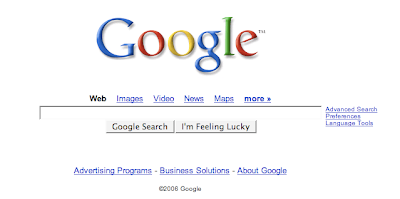


The Google home page, shown above, gives you direct access to five main features: Web, Images, Groups, Directory, and News. The default Web section is where you would perform a general Internet search. The home page also has three special options: advanced search, preferences, and language tools.

Advanced Search. Most of Google’s specific searches (i.e., images, news, etc.) have an advanced search option, and each one varies slightly. This option allows you to set some additional criteria, including languages, filtering of explicit material (SafeSearch), specification of filetype (perhaps you’re looking for a PDF or an Excel spreadsheet rather than a web page), and date of publication.

Preferences. In this section, you can select from a few preferences that you would like Google to remember each time you use it on the same computer. You can:
Select what language you would like Google tips and messages appear in (try Elmer Fudd, Klingon, or Bork! Bork! Bork—the Swedish Chef—for a laugh);
Select what languages or countries of origin you would like to have included in your search results;
Permanently turn on SafeSearch;
Specify the number of search results you would like to appear on each page;
and even ask Google to open all search results in a new browser window (very convenient if you find yourself clicking on many links to find just the right resource
).
Language Tools. This page offers you a direct search of pages from a specific country or in a particular language, a text translator for Latinate languages, and a way to translate an entire webpage.